In this article, we’ll walk you through some basic data types in JavaScript.
Start the Node.js REPL Environment
To follow along with these examples, it’s best to try them out in a REPL (Read-Eval-Print Loop) environment, which allows you to run JavaScript code interactively.
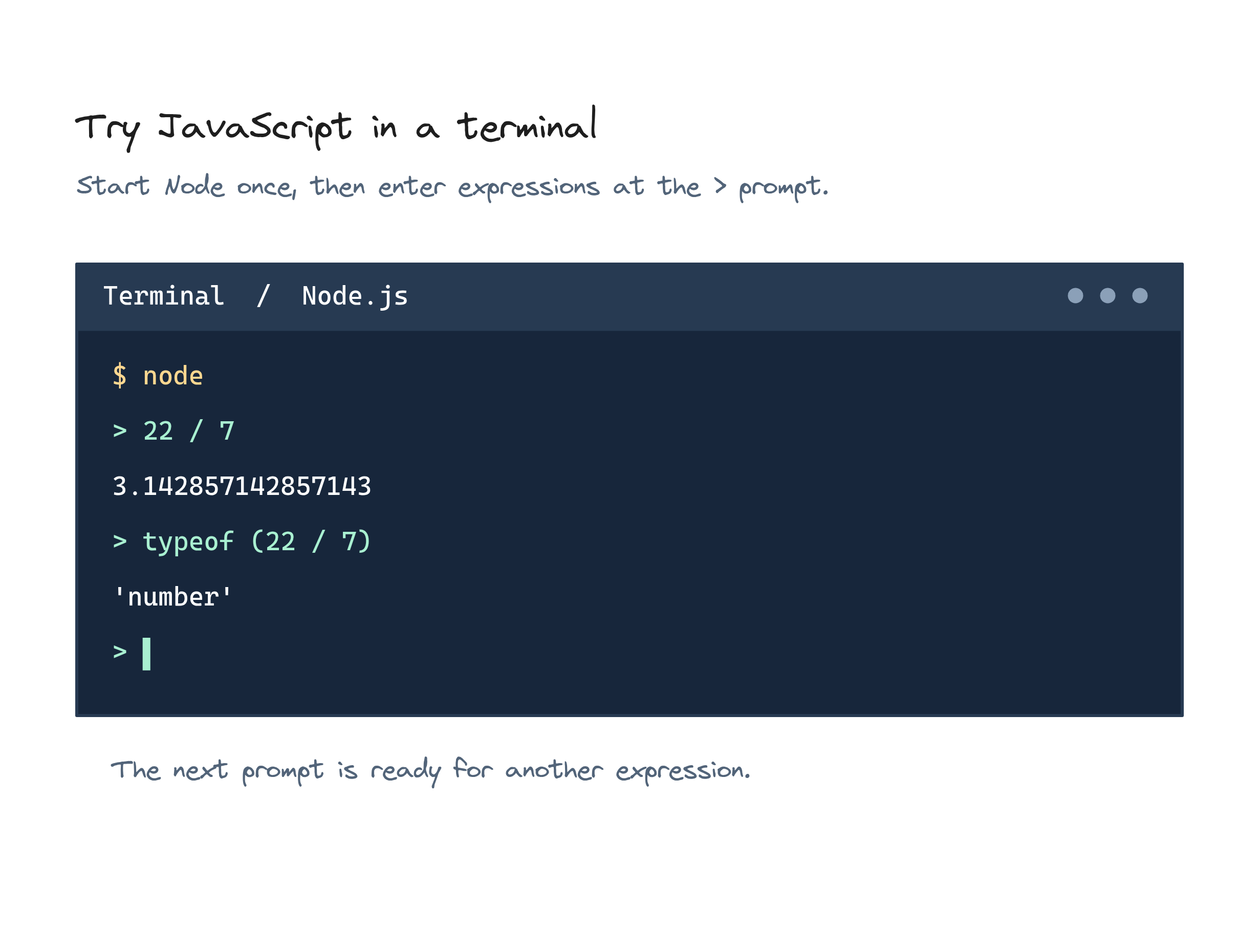
Assuming that Node.js is installed, open your terminal or command prompt and type the following command to start the REPL:
node
You'll know you're in the Node.js REPL when you see the > prompt. From here, you can type in any JavaScript code and see the results immediately, making it a great way to experiment with the examples in this guide:
> console.log("Hello, World!");
Hello, World!
Working with Primitive Types
JavaScript has several primitive data types. These are the building blocks of all programs. Let’s explore a few important ones.
Numbers
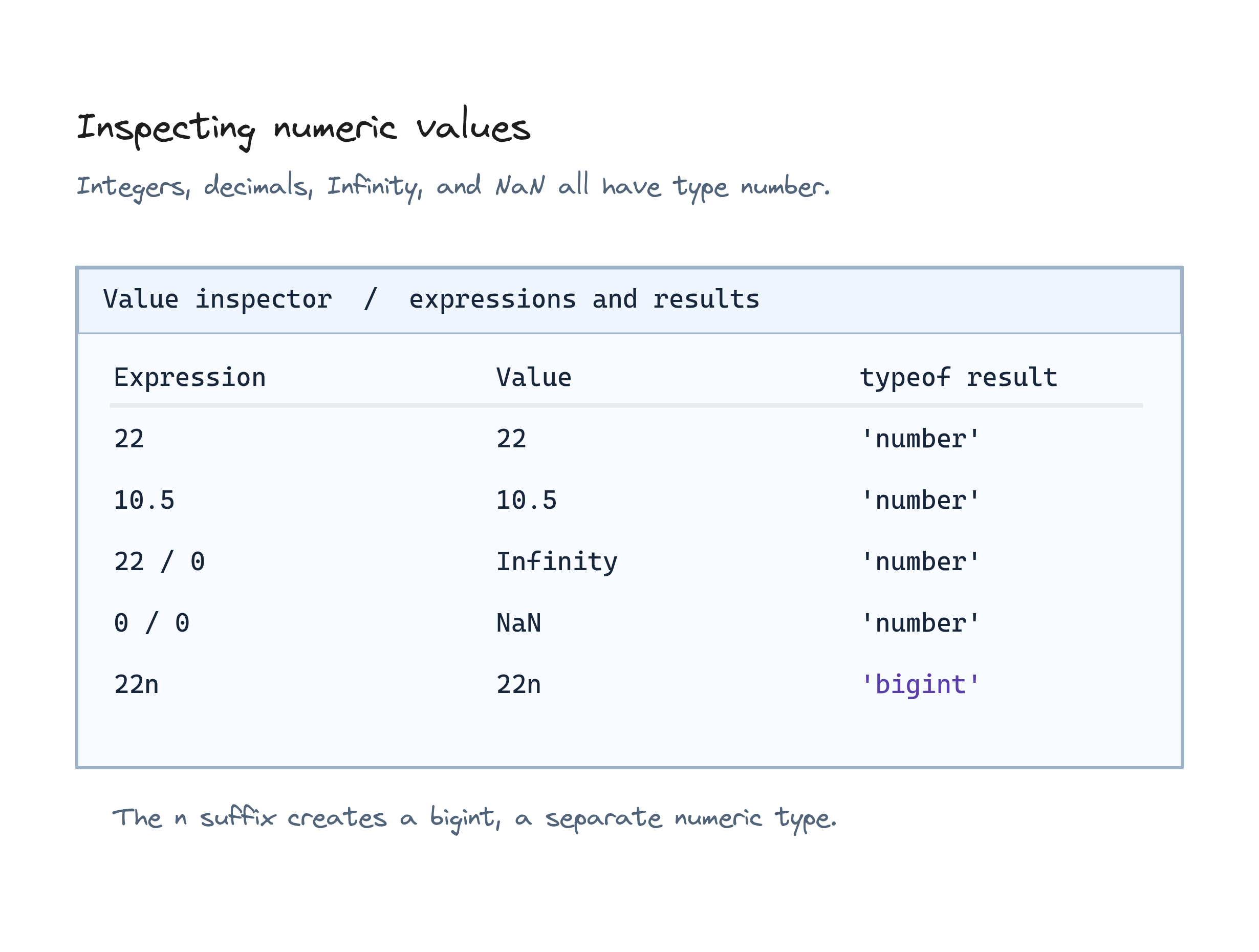
In JavaScript, we mostly use the number type for all numeric values. There’s no distinction between integers and floating-point numbers. They are all treated as 64-bit floating-point numbers. Here’s a simple example:
22;
10.5;
22 / 7;  // Output: 3.142857142857143
If you're curious about what type a value is, you can use the typeof function:
typeof 22 / 7;  // Output: 'number'
typeof 22;      // Output: 'number'
JavaScript also has some special values like Infinity and NaN (which stands for "Not a Number"):
22 / 0;  // Output: Infinity
0 / 0;   // Output: NaN
There is another numeric type bigint that was introduced more recently. bigint is used to represent integers larger than the Number type can handle.
123456789012345678901234567890n;
typeof 123456789012345678901234567890n; // Output: 'bigint'
Strings
A string in JavaScript is a sequence of characters and can be created using either single (') or double (") quotes:
"Hello";
'John';
typeof "Hello";  // Output: 'string'
typeof 'John';   // Output: 'string'
You can also find the length of a string using .length:
'JavaScript'.length; // Output: 10
Did you know? JavaScript strings support Unicode characters. This includes characters from non-English languages and also emojis.
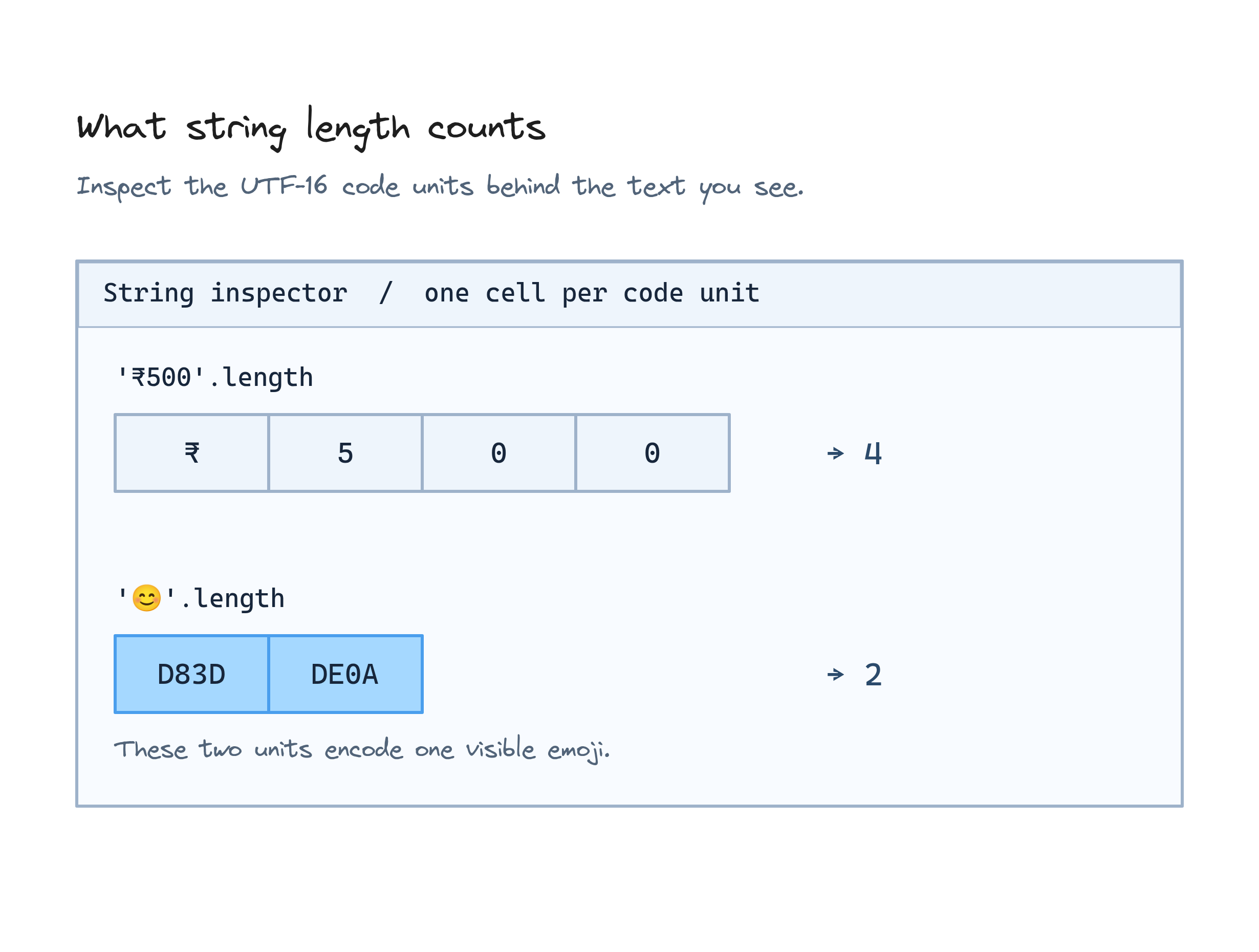
'₹500'.length; // Output: 4
The string length is calculated by characters, not bytes, so even though ₹ takes up 3 bytes, it’s still counted as one character. However, be careful when working with length of strings containing emojis.
'😊'.length; // Output: 2 (surprise!)
Don't worry about the reason for this. But if you are curious, the reason is that JavaScript strings are stored as a sequence of 16-bit code units (UTF-16), but certain characters, like emojis and some other special symbols, are represented by two 16-bit code units instead of one.
Converting Between Numbers and Strings
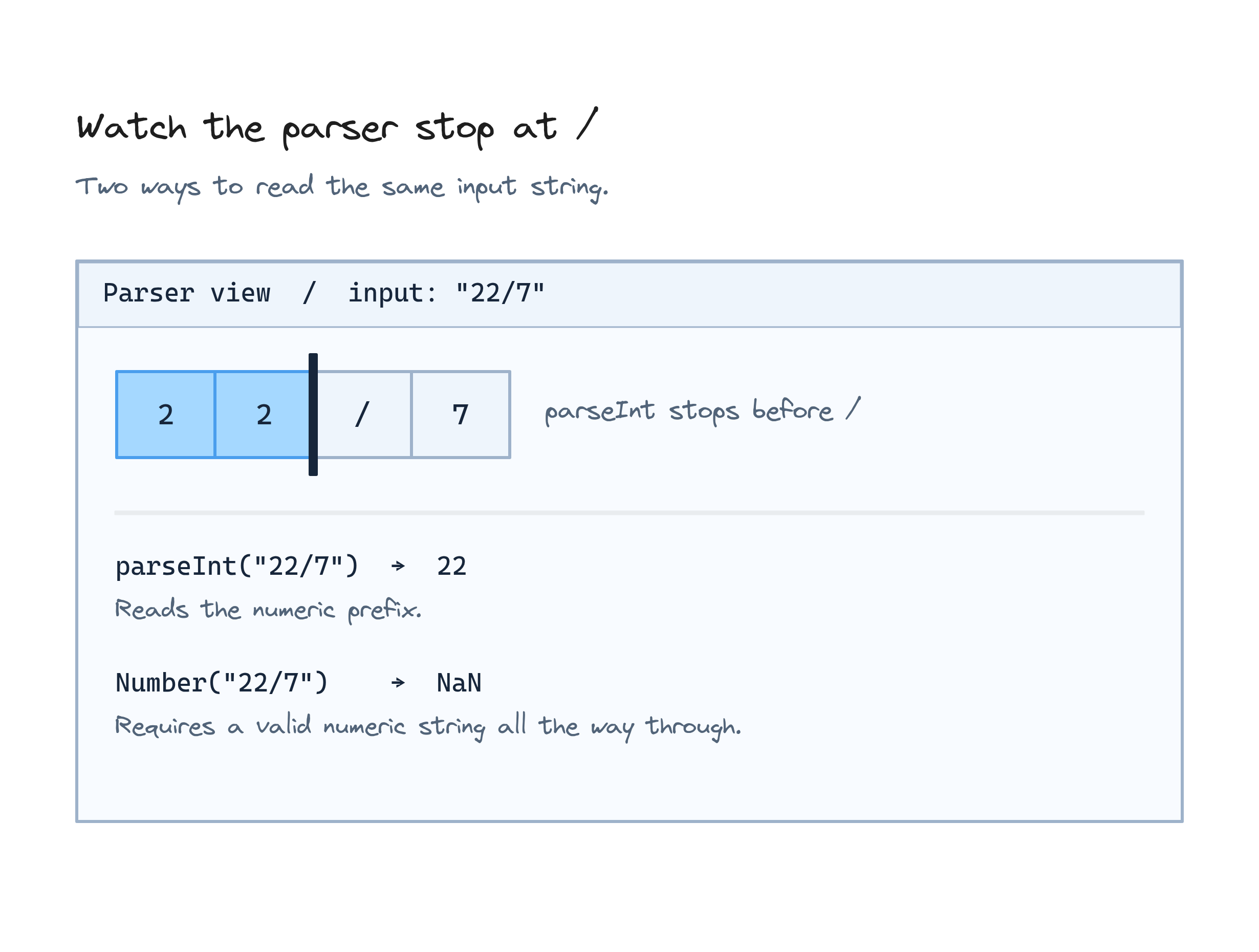
You might need to convert strings to numbers or vice versa. JavaScript offers a few functions for this, such as Number(), parseInt(), and parseFloat():
Number(): Converts the entire string to a number (if possible).parseInt(): Extracts only the integer part.parseFloat(): Works likeparseInt(), but keeps the decimals.
Here are some examples:
Number("7");       // Output: 7
parseInt("22/7");  // Output: 22
parseFloat("3.14");  // Output: 3.14
Booleans
The boolean data type has 2 values: true and false.
false;
true;
typeof true;   // Output: 'boolean'
typeof false;  // Output: 'boolean'
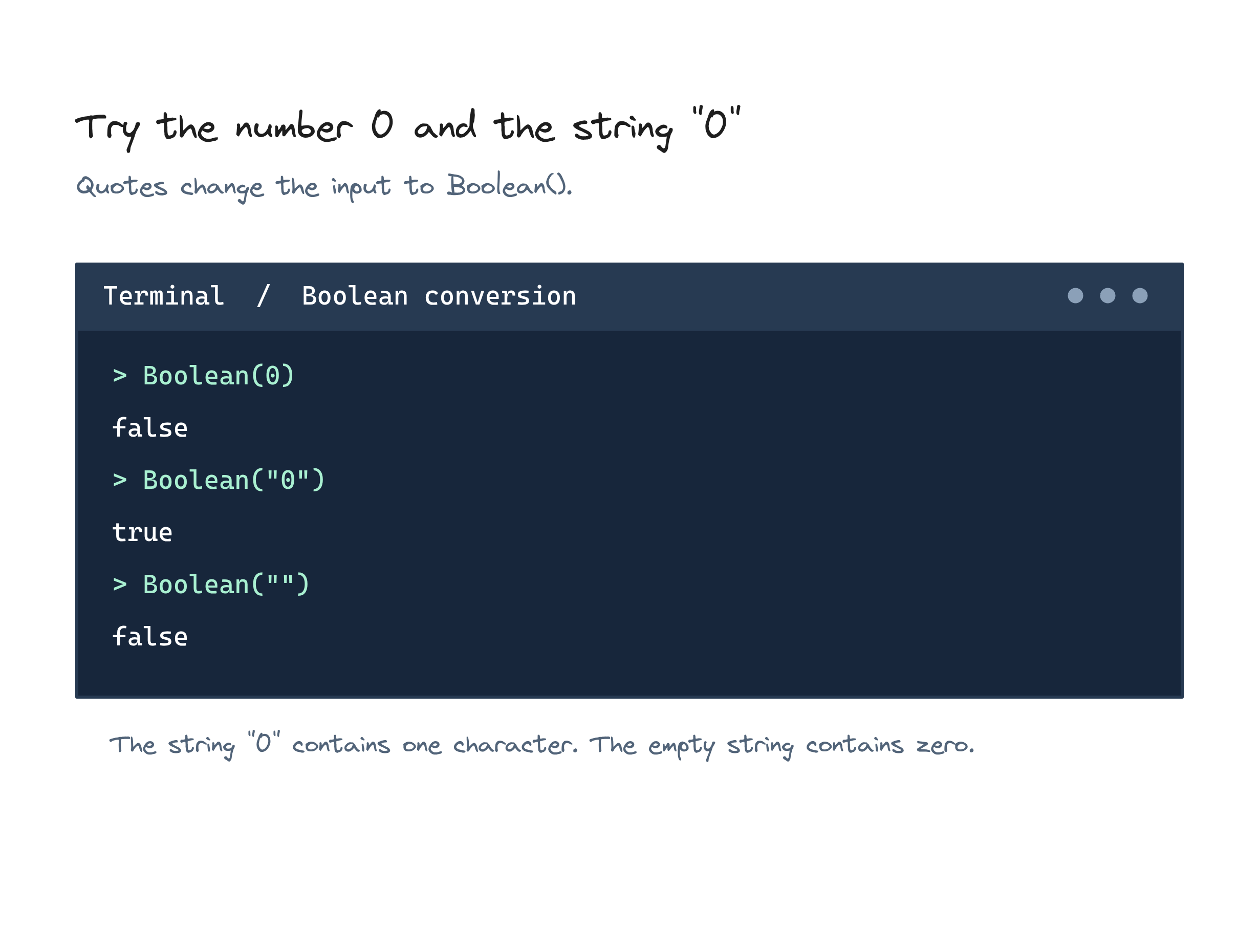
JavaScript has the concept of truthy and falsy values. Some values, like 0, false, '' (empty string), and null, are considered falsy. Everything else is truthy.
To check whether something is truthy or falsy, you can use the Boolean() function:
Boolean("");     // Output: false
Boolean("abc");  // Output: true
Boolean(0);      // Output: false
Boolean(1);      // Output: true
Working with Variables in JavaScript
In JavaScript, you can declare variables using var, let, or const. The three types have different scopes and have different reassignment behaviour.
The var keyword is function-scoped and has been used in older JavaScript before let and const were introduced. let and const are block-scoped, offering more predictable behavior in modern JavaScript.
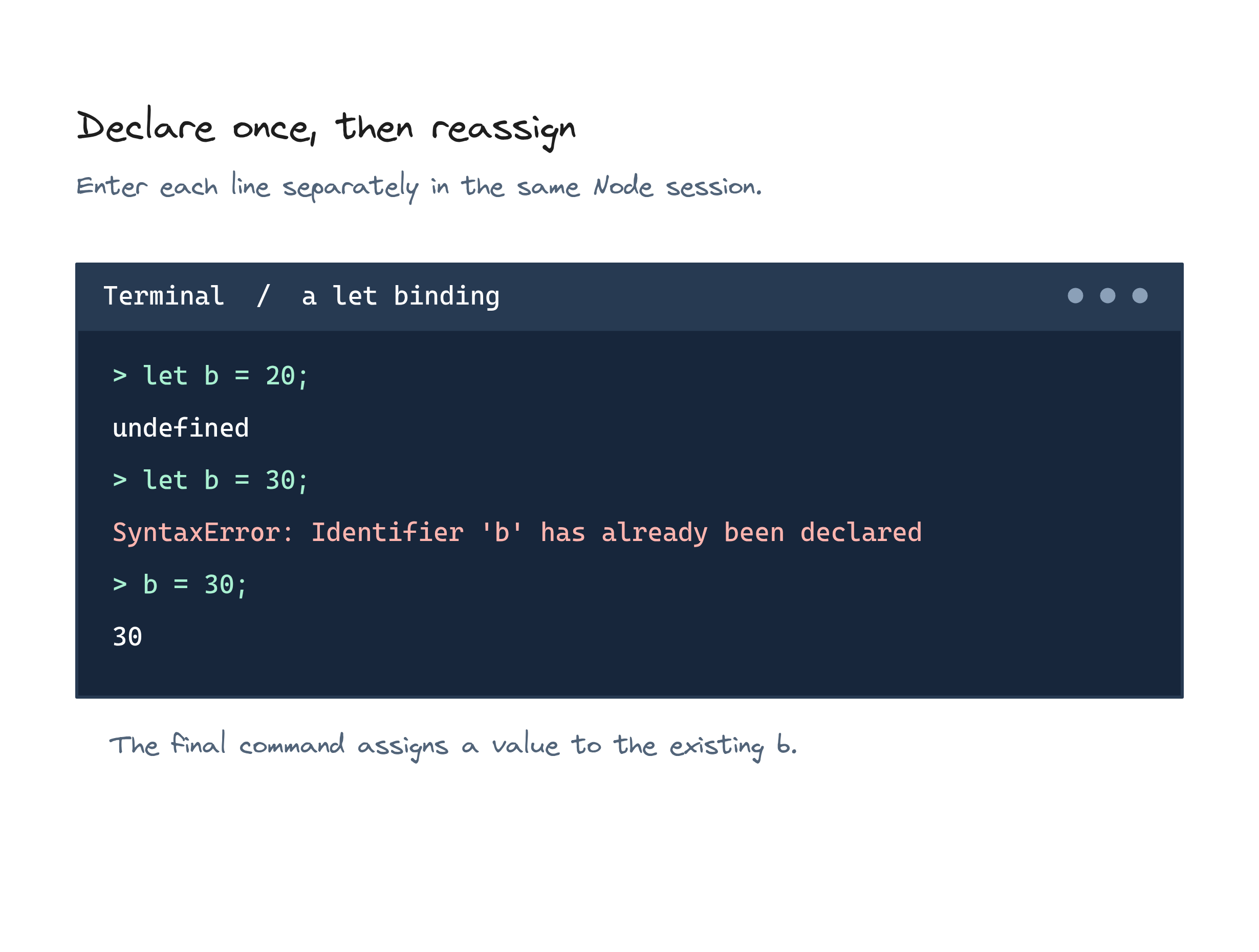
let allows reassignment, while const declares a variable that cannot be reassigned after it's initialized. For example:
// `var` can be redeclared and reassigned
// All 3 statements here are valid (although redeclaration is not recommended)
var a = 10;
var a = 20;
a = 30;
// `let` can be reassigned but not redeclared
let b = 20;
let b = 30;    // Uncaught SyntaxError: Identifier 'b' has already been declared
b = 30;
// `const` cannot be redeclared or reassigned
const c = 30;
const c = 40;  // Uncaught SyntaxError: Identifier 'c' has already been declared
c = 50;        // Uncaught TypeError: Assignment to constant variable.
Representing Empty Values
undefined
The value undefined represents something that has not been initialized or defined yet. When you declare a variable but don’t assign any value to it, JavaScript automatically sets it to undefined.
Here’s an example:
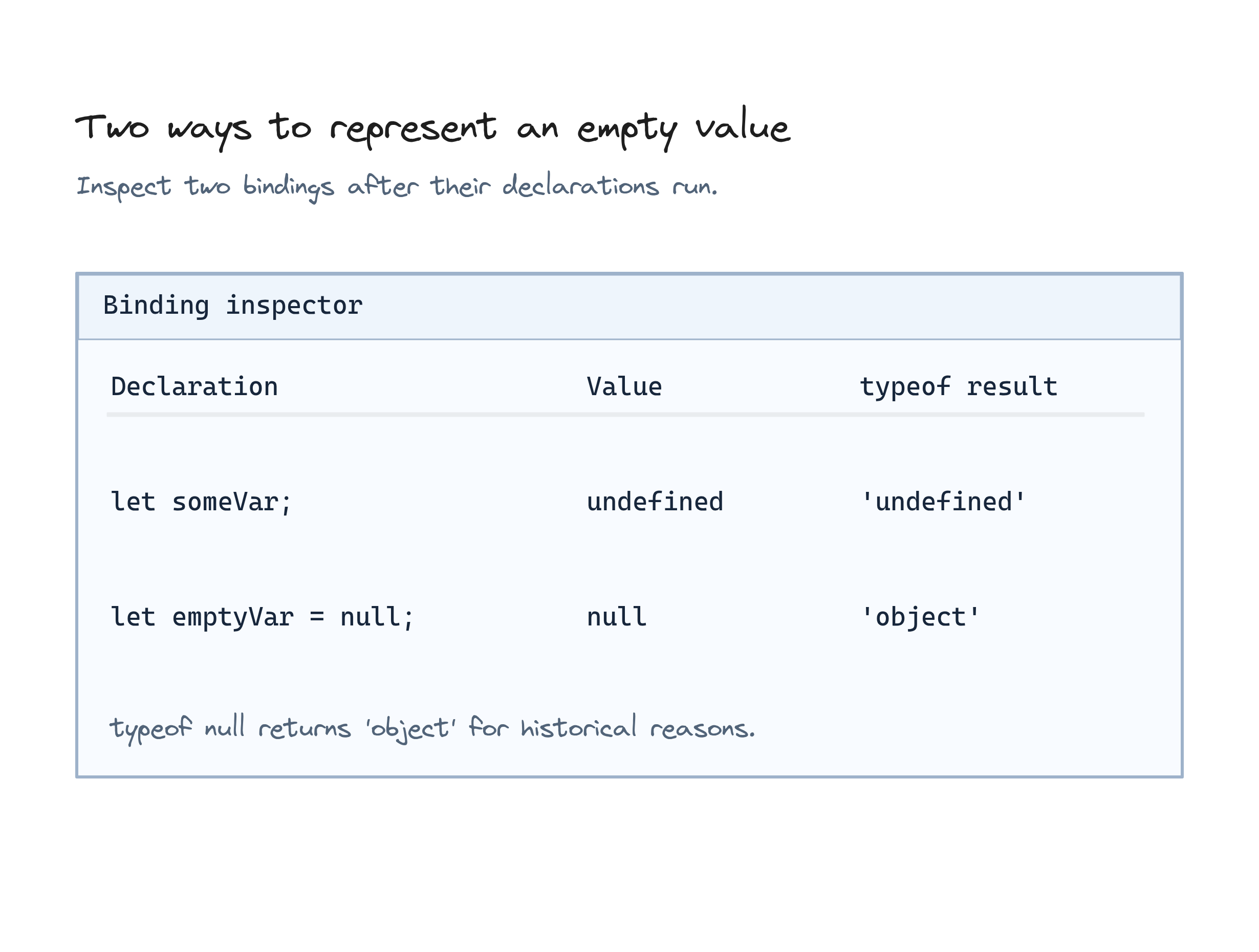
let someVar;
console.log(someVar);  // Output: undefined
In this case, someVar has been declared, but since no value has been assigned, its value is undefined.
It’s also the default return value for functions that do not explicitly return a value (we will see this in a different article).
null
On the other hand, null is an explicit assignment. It’s used when you want to intentionally indicate that a variable has no value.
let emptyVar = null;
emptyVar;  // Output: null
This tells JavaScript, "I’m aware of this variable, but I’m intentionally assigning it an empty (null) value."
Use null when you want to intentionally clear a value or represent an "empty" state (e.g., when you're waiting for a value from a database but haven’t received it yet).
Despite their similarity, null and undefined have different types:
typeof undefined;  // Output: "undefined"
typeof null;       // Output: "object"
The type of null is object, which can be surprising, but it’s a known quirk of JavaScript’s type system.
It’s important to note that both null and undefined are considered falsy values. This means they both evaluate to false in a boolean context:
Boolean(null);      // Output: false
Boolean(undefined); // Output: false
Dynamic Typing in JavaScript
JavaScript is a dynamically typed language. This means that variables don’t have a fixed type — you can assign a value of any type to a variable, and JavaScript will handle it.
Here’s an example:
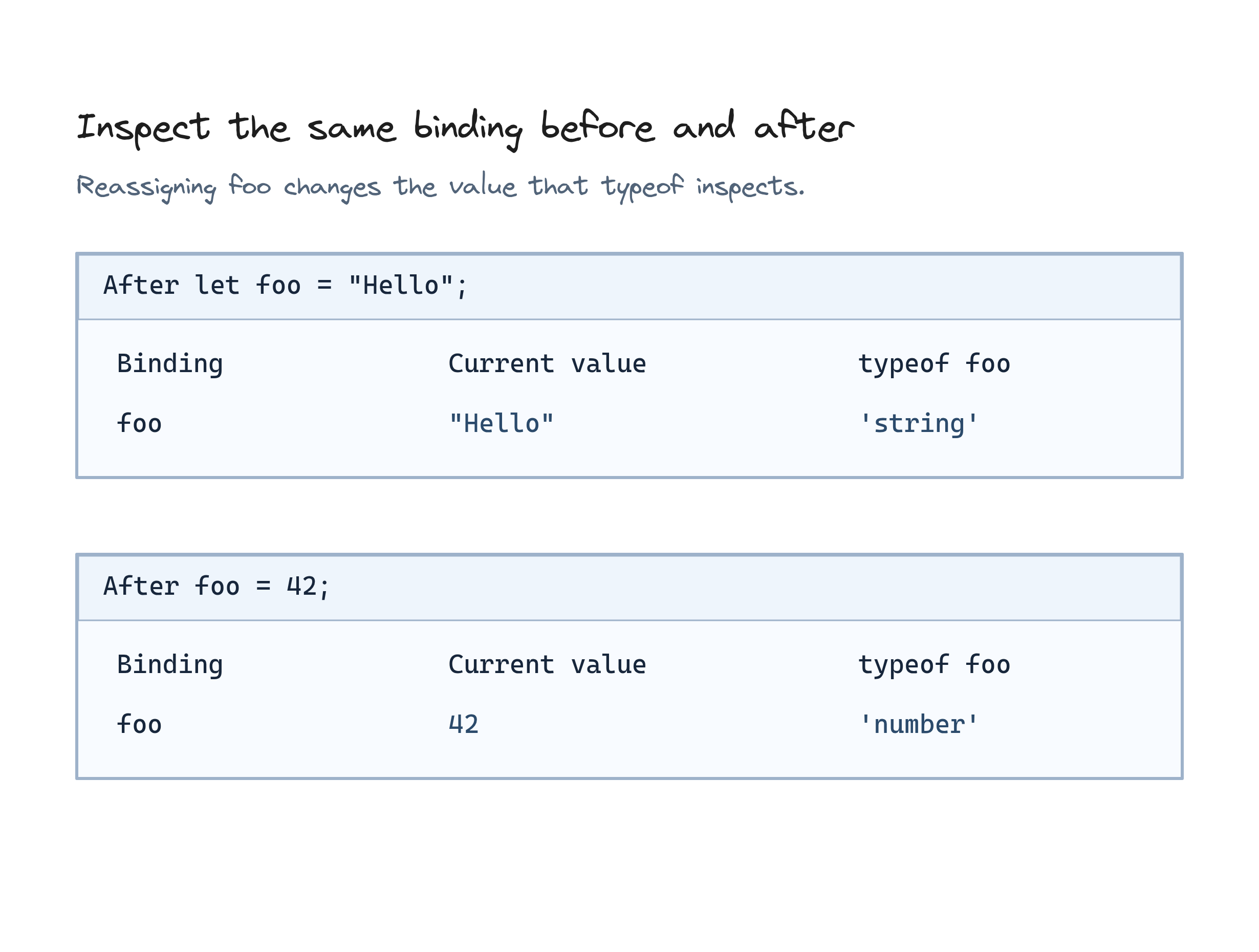
var foo = "Hello"
let bar = 123
typeof foo  // Output: string
typeof bar  // Output: number
JavaScript variables are references to values, meaning the variable itself doesn’t have a type — only the value it points to does.
When we say typeof foo, we are actually asking the type of the value that foo refers to. foo itself does not have a type.
Notice how you can reassign foo to a completely different type without causing an error:
foo = 42
typeof foo  // Output: number
Operations with Numbers and Strings
JavaScript has built-in functions for both math and string operations.
Math Functions
For performing mathematical operations, you can use the Math object. For example:
Math.pow(2, 3);  // Output: 8
Math.sqrt(8);    // Output: 2.8284271247461903
String Functions
You can concatenate 2 strings with +:
'Hello' + 'World'; // Output: 'HelloWorld'
JavaScript strings come with many useful methods that can be invoked with a <string>.<method>. Let's see a few in action:
'JavaScript'.toUpperCase();
'JavaScript'.toLowerCase();
'   JavaScript   '.trim();
// When the variable is referring to a string, you can use it with the variable name
let str = 'JavaScript';
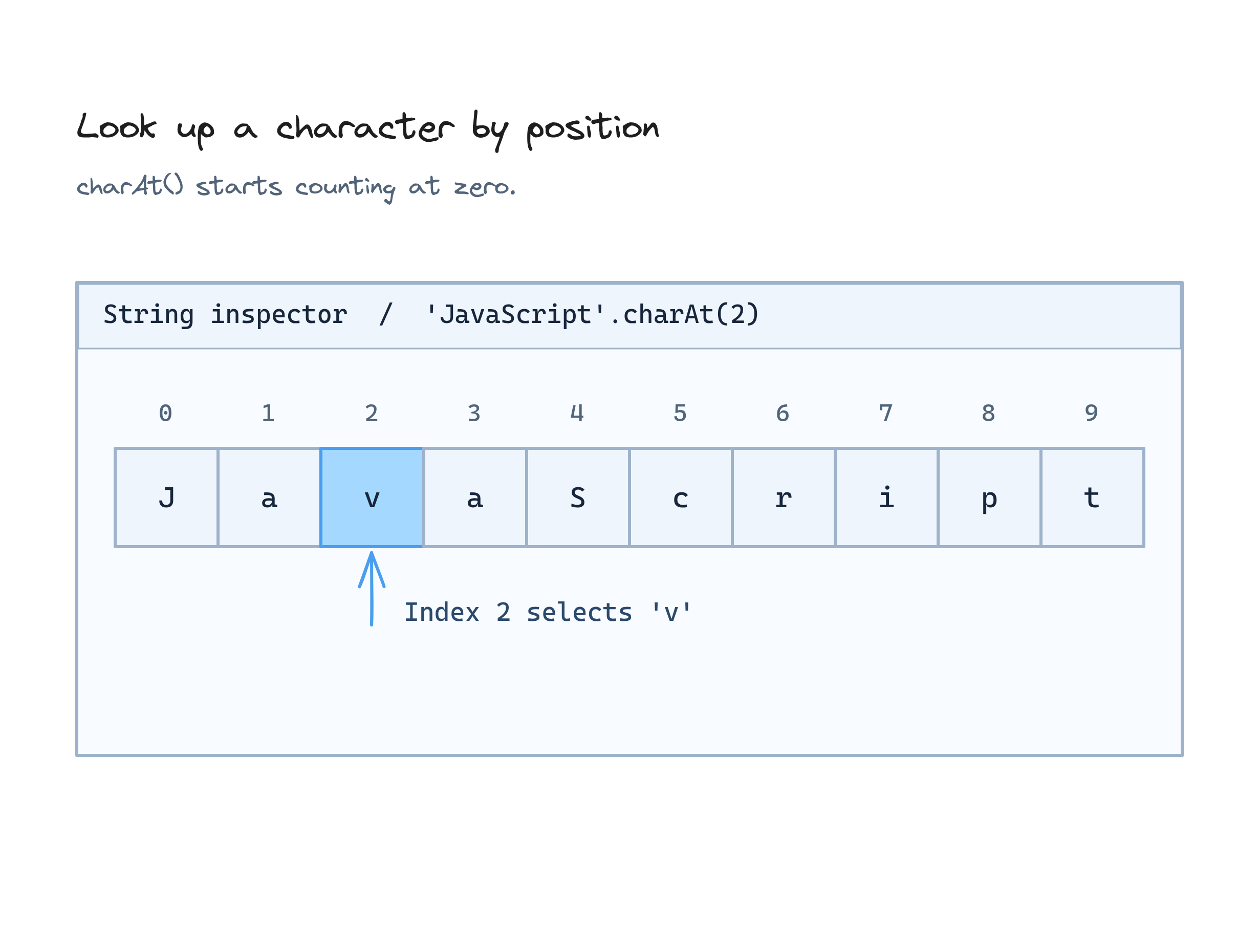
str.charAt(2);     // Output: v
str.indexOf("S");  // Output: -1 (case-sensitive search)
Template Literals in JavaScript
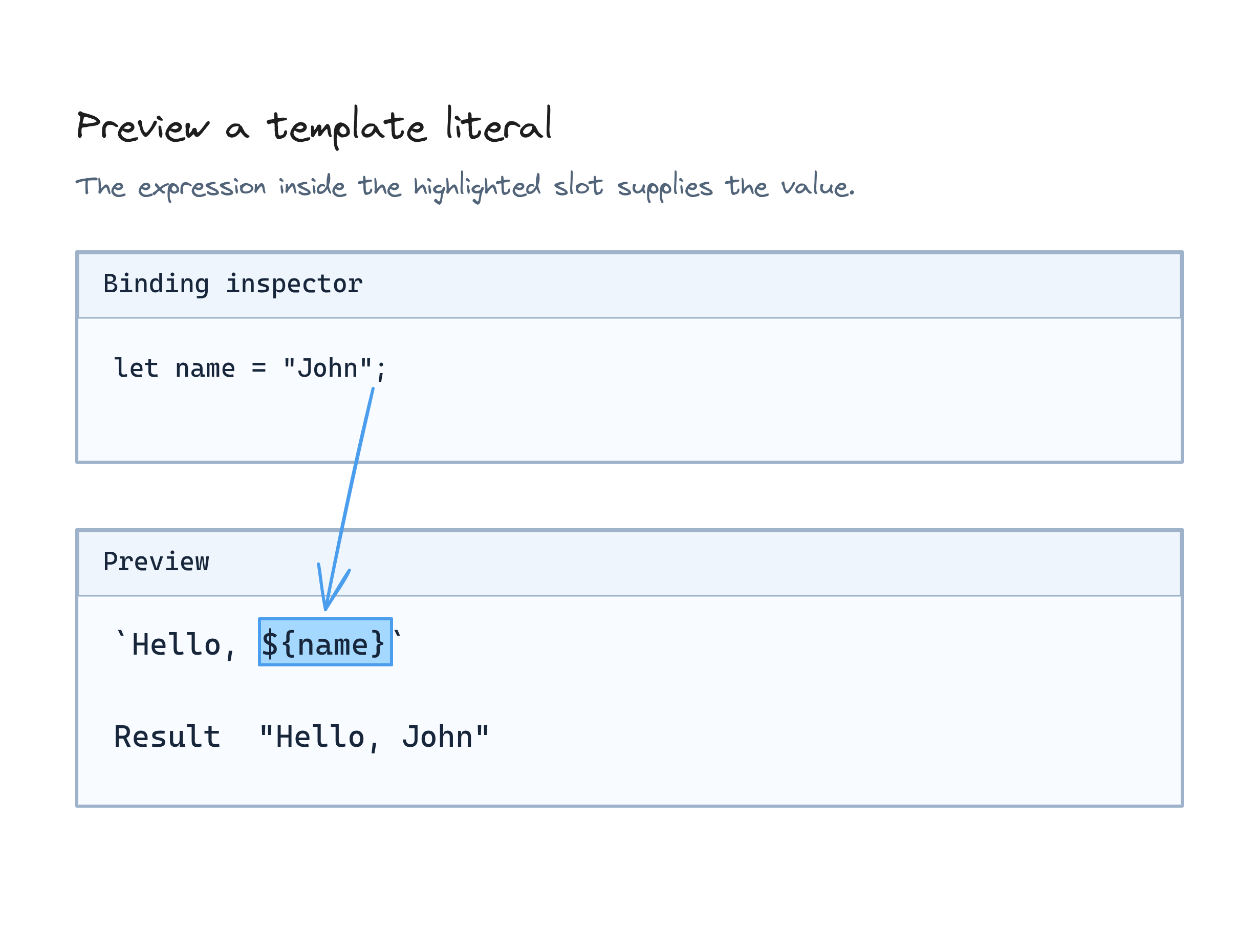
Concatenating strings with variables can get tedious, especially if you’re adding multiple variables into the same string. Fortunately, template literals make this easy. Template literals use backticks (`) and allow embedding variables directly into strings using ${}.
Here's a simple example:
let name = "John";
`Hello, ${name}`;  // Output: Hello, John
You can even write multi-line strings using template literals:
console.log(`Welcome to Acme Corp
Hello, ${name}`);
This is much cleaner than trying to concatenate strings manually with +.
Other Primitive Types
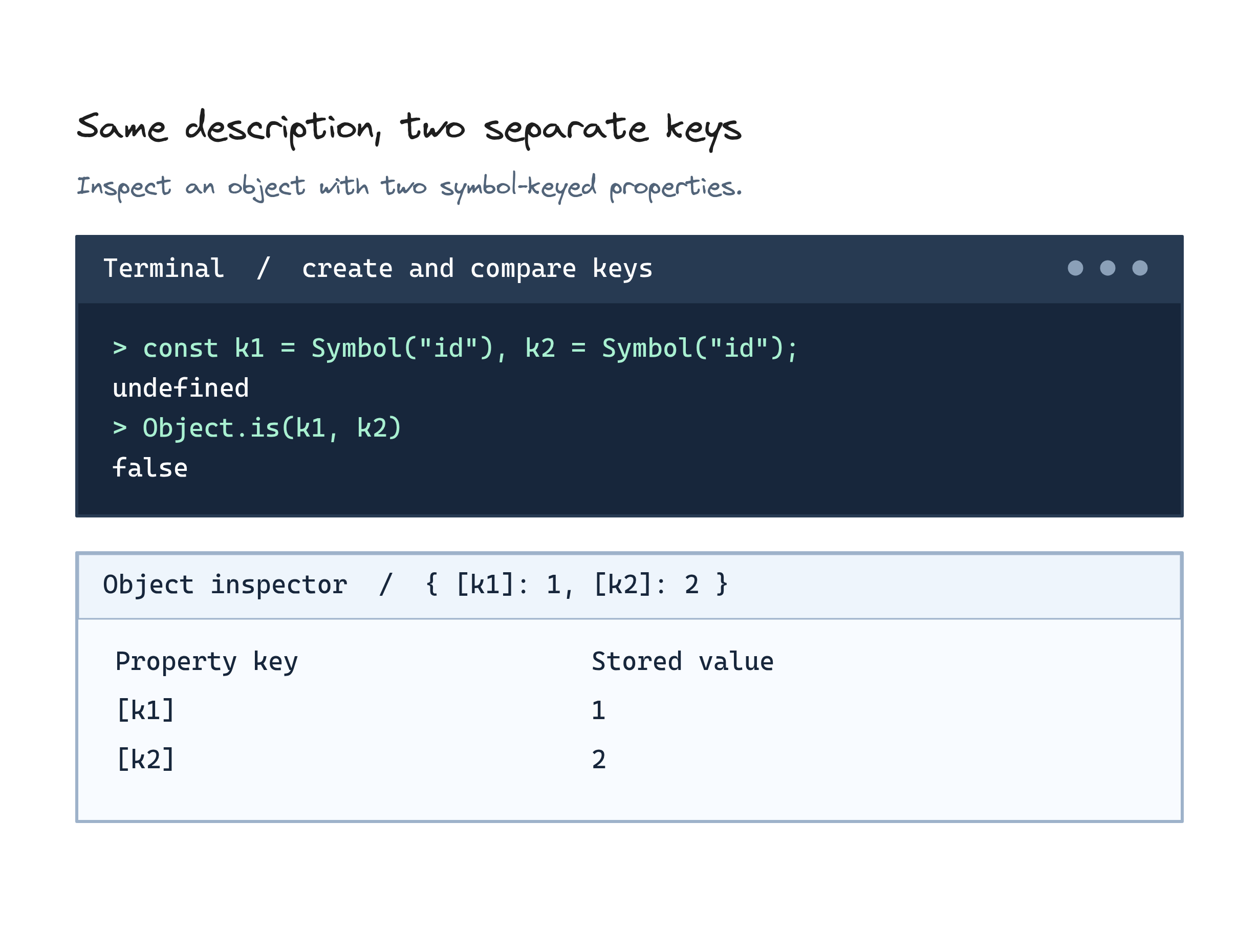
JavaScript also has a unique and immutable primitive value called Symbol that is often used as object keys. We will cover this in a separate section.
Test Your Knowledge
No quiz available